

- Python
- TypeScript
- Java
- Kotlin
- C#
- Ruby
- Rust
You can find the complete code for this tutorial here.Add That The client will: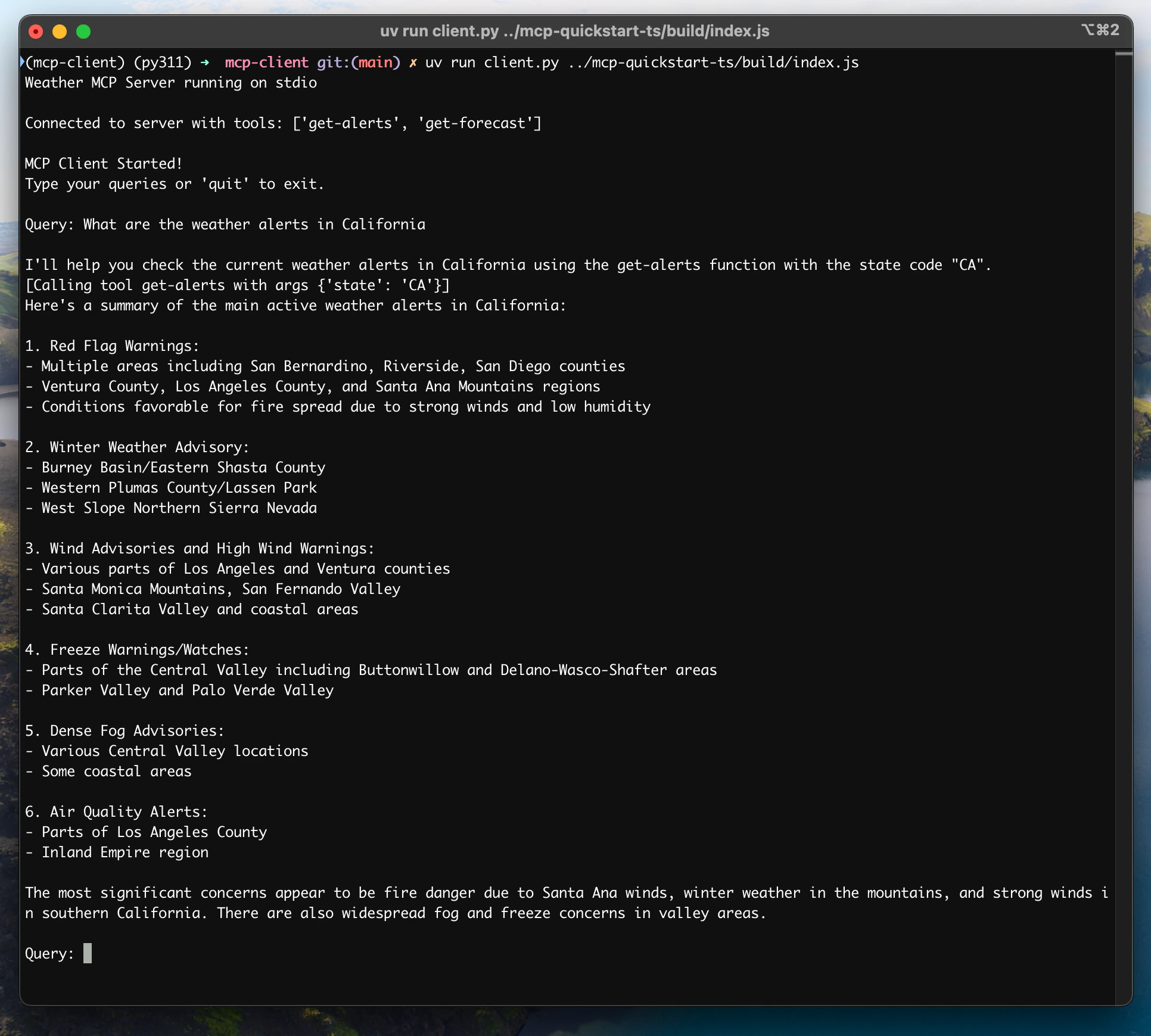
System Requirements
Before starting, ensure your system meets these requirements:- Mac or Windows computer
- Latest Python version installed
- Latest version of
uvinstalled - You must use the Python MCP SDK 2.0.0 or higher
Setting Up Your Environment
First, create a new Python project withuv:# Create project directory
uv init mcp-client
cd mcp-client
# Create virtual environment
uv venv
# Activate virtual environment
source .venv/bin/activate
# Install required packages
uv add mcp anthropic python-dotenv
# Remove boilerplate files
rm main.py
# Create our main file
touch client.py
# Create project directory
uv init mcp-client
cd mcp-client

# Create virtual environment
uv venv

# Activate virtual environment
.venv\Scripts\activate

# Install required packages
uv add mcp anthropic python-dotenv

# Remove boilerplate files
del main.py

# Create our main file
new-item client.py
Setting Up Your API Key
You’ll need an Anthropic API key from the Anthropic Console.Create a.env file to store it:echo "ANTHROPIC_API_KEY=your-api-key-goes-here" > .env
.env to your .gitignore:echo ".env" >> .gitignore
Make sure you keep your
ANTHROPIC_API_KEY secure!Creating the Client
Imports and Setup
First, let’s set up our imports and the pieces the rest of the file shares:import asyncio
import sys
from mcp import Client, StdioServerParameters
from mcp.client.stdio import stdio_client
from mcp_types import TextContent
from anthropic import Anthropic
from dotenv import load_dotenv
load_dotenv() # load environment variables from .env
MODEL = "claude-opus-5"
anthropic = Anthropic()
Client is the single object your program talks to the server through. Listing the tools, calling one, reading a resource: each of those is a method on it.Server Connection Management
Next, we’ll work out which process to launch for a given server script:def server_params(server_script_path: str) -> StdioServerParameters:
"""Describe the subprocess that runs an MCP server
Args:
server_script_path: Path to the server script (.py or .js)
"""
if server_script_path.endswith(".py"):
command = "python"
elif server_script_path.endswith(".js"):
command = "node"
else:
raise ValueError("Server script must be a .py or .js file")
return StdioServerParameters(command=command, args=[server_script_path])
StdioServerParameters is configuration, not a connection. stdio_client() turns it into a stdio transport, and Client opens that transport when you enter its async with block. We’ll do both in main().Query Processing Logic
Now let’s add the core functionality for processing queries and handling tool calls:async def process_query(client: Client, query: str) -> str:
"""Process a query using Claude and available tools"""
messages = [
{
"role": "user",
"content": query
}
]
tool_list = await client.list_tools()
available_tools = [{
"name": tool.name,
"description": tool.description,
"input_schema": tool.input_schema
} for tool in tool_list.tools]
# Initial Claude API call
response = anthropic.messages.create(
model=MODEL,
max_tokens=1000,
messages=messages,
tools=available_tools
)
# Process response and handle tool calls
final_text = []
tool_results = []
for content in response.content:
if content.type == 'text':
final_text.append(content.text)
elif content.type == 'tool_use':
tool_name = content.name
tool_args = content.input
# Execute tool call
result = await client.call_tool(tool_name, tool_args)
final_text.append(f"[Calling tool {tool_name} with args {tool_args}]")
tool_results.append({
"type": "tool_result",
"tool_use_id": content.id,
"content": "\n".join(
block.text
for block in result.content
if isinstance(block, TextContent)
),
"is_error": result.is_error
})
if tool_results:
messages.append({"role": "assistant", "content": response.content})
messages.append({"role": "user", "content": tool_results})
# Get next response from Claude
response = anthropic.messages.create(
model=MODEL,
max_tokens=1000,
messages=messages,
tools=available_tools
)
for content in response.content:
if content.type == 'text':
final_text.append(content.text)
return "\n".join(final_text)
call_tool returns a CallToolResult. Its content is a list of blocks, which is why we narrow to TextContent before reading .text. A tool that raises does not raise here: it answers with is_error set, and passing that flag on lets Claude read the message and try something else.Interactive Chat Interface
Now we’ll add the chat loop:async def chat_loop(client: Client) -> None:
"""Run an interactive chat loop"""
print("\nMCP Client Started!")
print("Type your queries or 'quit' to exit.")
while True:
try:
query = (await asyncio.to_thread(input, "\nQuery: ")).strip()
except EOFError:
break
if query.lower() == 'quit':
break
try:
response = await process_query(client, query)
print("\n" + response)
except Exception as e:
print(f"\nError: {e}")
input() blocks, so it runs on a worker thread. That keeps the event loop free to service the connection while you type.Main Entry Point
Finally, we’ll add the main execution logic:async def main() -> None:
if len(sys.argv) < 2:
print("Usage: python client.py <path_to_server_script>")
sys.exit(1)
async with Client(stdio_client(server_params(sys.argv[1]))) as client:
tool_list = await client.list_tools()
tool_names = [tool.name for tool in tool_list.tools]
print("\nConnected to server with tools:", tool_names)
await chat_loop(client)
if __name__ == "__main__":
asyncio.run(main())
async with is the entire connection lifecycle. Entering it launches the server and agrees a protocol version with it; leaving it disconnects and shuts the subprocess down. There is nothing to close by hand.You can find the complete client.py file here.Key Components Explained
1. Client Initialization
- A single
Clientcarries the connection, andasync withis its whole lifecycle - There is no connect/close pair to call and nothing to clean up afterwards
- Configures the Anthropic client for Claude interactions
2. Server Connection
- Supports both Python and Node.js servers
- Validates server script type
- Launches the server as a subprocess and speaks stdio to it
- Lists the available tools once the connection is open
3. Query Processing
- Maintains conversation context
- Handles Claude’s responses and tool calls
- Manages the message flow between Claude and tools
- Combines results into a coherent response
4. Interactive Interface
- Provides a simple command-line interface
- Handles user input and displays responses
- Includes basic error handling
- Allows graceful exit
5. Resource Management
- Leaving the
async withblock disconnects and shuts the server subprocess down - A failing query is reported without ending the session
- Typing
quit, or closing standard input, exits cleanly
Common Customization Points
-
Tool Handling
- Modify
process_query()to handle specific tool types - Add custom error handling for tool calls
- Implement tool-specific response formatting
- Modify
-
Response Processing
- Customize how tool results are formatted
- Add response filtering or transformation
- Implement custom logging
-
User Interface
- Add a GUI or web interface
- Implement rich console output
- Add command history or auto-completion
Running the Client
To run your client with any MCP server:uv run client.py path/to/server.py # python server
uv run client.py path/to/build/index.js # node server
If you’re continuing the weather tutorial from the server quickstart, your command might look something like this:
python client.py .../quickstart-resources/weather-server-python/weather.py- Connect to the specified server
- List available tools
- Start an interactive chat session where you can:
- Enter queries
- See tool executions
- Get responses from Claude
How It Works
When you submit a query:- The client gets the list of available tools from the server
- Your query is sent to Claude along with tool descriptions
- Claude decides which tools (if any) to use
- The client executes any requested tool calls through the server
- Results are sent back to Claude
- Claude provides a natural language response
- The response is displayed to you
Best practices
-
Error Handling
- Check
result.is_errorrather than expecting a failing tool to raise - Provide meaningful error messages
- Gracefully handle connection issues
- Check
-
Resource Management
- Let the
async withblock own the connection - Keep it open for as long as you need the server
- Handle server disconnections
- Let the
-
Security
- Store API keys securely in
.env - Validate server responses
- Be cautious with tool permissions
- Store API keys securely in
-
Tool Names
- Tool names can be validated according to the format specified here
- If a tool name conforms to the specified format, it should not fail validation by an MCP client
Troubleshooting
Server Path Issues
- Double-check the path to your server script is correct
- Use the absolute path if the relative path isn’t working
- For Windows users, make sure to use forward slashes (/) or escaped backslashes (\) in the path
- Verify the server file has the correct extension (.py for Python or .js for Node.js)
# Relative path
uv run client.py ./server/weather.py

# Absolute path
uv run client.py /Users/username/projects/mcp-server/weather.py

# Windows path (either format works)
uv run client.py C:/projects/mcp-server/weather.py
uv run client.py C:\\projects\\mcp-server\\weather.py
Response Timing
- The first response might take up to 30 seconds to return
- This is normal and happens while:
- The server initializes
- Claude processes the query
- Tools are being executed
- Subsequent responses are typically faster
- Don’t interrupt the process during this initial waiting period
Common Error Messages
If you see:FileNotFoundError: Check your server pathConnection refused: Ensure the server is running and the path is correctTool execution failed: Verify the tool’s required environment variables are setTimeout error: Consider raisingread_timeout_secondson theClient
You can find the complete code for this tutorial here.Update your Create a Add The client will:
System Requirements
Before starting, ensure your system meets these requirements:- Mac or Windows computer
- Node.js 20 or higher installed
- Latest version of
npminstalled - Anthropic API key (Claude)
Setting Up Your Environment
First, let’s create and set up our project:# Create project directory
mkdir mcp-client-typescript
cd mcp-client-typescript
# Initialize npm project
npm init -y
# Install dependencies
npm install @anthropic-ai/sdk @modelcontextprotocol/client dotenv
# Install dev dependencies
npm install -D @types/node typescript
# Create source file
touch index.ts
# Create project directory
md mcp-client-typescript
cd mcp-client-typescript

# Initialize npm project
npm init -y

# Install dependencies
npm install @anthropic-ai/sdk @modelcontextprotocol/client dotenv

# Install dev dependencies
npm install -D @types/node typescript

# Create source file
new-item index.ts
package.json to set type: "module" and a build script:package.json
{
  "type": "module",
  "scripts": {
    "build": "tsc && chmod 755 build/index.js"
  }
}
tsconfig.json in the root of your project:tsconfig.json
{
  "compilerOptions": {
    "target": "ES2022",
    "module": "Node16",
    "moduleResolution": "Node16",
    "types": ["node"],
    "outDir": "./build",
    "rootDir": "./",
    "strict": true,
    "esModuleInterop": true,
    "skipLibCheck": true,
    "forceConsistentCasingInFileNames": true
  },
  "include": ["index.ts"],
  "exclude": ["node_modules"]
}
Setting Up Your API Key
You’ll need an Anthropic API key from the Anthropic Console.Create a.env file to store it:echo "ANTHROPIC_API_KEY=<your key here>" > .env
.env to your .gitignore:echo ".env" >> .gitignore
Make sure you keep your
ANTHROPIC_API_KEY secure!Creating the Client
Basic Client Structure
First, let’s set up our imports and create the basic client class inindex.ts:import { Anthropic } from "@anthropic-ai/sdk";
import {
MessageParam,
Tool,
} from "@anthropic-ai/sdk/resources/messages/messages.mjs";
import { Client } from "@modelcontextprotocol/client";
import { StdioClientTransport } from "@modelcontextprotocol/client/stdio";
import readline from "readline/promises";
import dotenv from "dotenv";
dotenv.config();
const ANTHROPIC_API_KEY = process.env.ANTHROPIC_API_KEY;
if (!ANTHROPIC_API_KEY) {
throw new Error("ANTHROPIC_API_KEY is not set");
}
class MCPClient {
private mcp: Client;
private anthropic: Anthropic;
private transport: StdioClientTransport | null = null;
private tools: Tool[] = [];
constructor() {
this.anthropic = new Anthropic({
apiKey: ANTHROPIC_API_KEY,
});
this.mcp = new Client({ name: "mcp-client-cli", version: "1.0.0" });
}
// methods will go here
}
Server Connection Management
Next, we’ll implement the method to connect to an MCP server:async connectToServer(serverScriptPath: string) {
try {
const isJs = serverScriptPath.endsWith(".js");
const isPy = serverScriptPath.endsWith(".py");
if (!isJs && !isPy) {
throw new Error("Server script must be a .js or .py file");
}
const command = isPy
? process.platform === "win32"
? "python"
: "python3"
: process.execPath;
this.transport = new StdioClientTransport({
command,
args: [serverScriptPath],
});
await this.mcp.connect(this.transport);
const toolsResult = await this.mcp.listTools();
this.tools = toolsResult.tools.map((tool) => {
return {
name: tool.name,
description: tool.description,
input_schema: tool.inputSchema,
};
});
console.log(
"Connected to server with tools:",
this.tools.map(({ name }) => name)
);
} catch (e) {
console.log("Failed to connect to MCP server: ", e);
throw e;
}
}
Query Processing Logic
Now let’s add the core functionality for processing queries and handling tool calls:async processQuery(query: string) {
const messages: MessageParam[] = [
{
role: "user",
content: query,
},
];
const response = await this.anthropic.messages.create({
model: "claude-opus-5",
max_tokens: 1000,
messages,
tools: this.tools,
});
const finalText = [];
for (const content of response.content) {
if (content.type === "text") {
finalText.push(content.text);
} else if (content.type === "tool_use") {
const toolName = content.name;
const toolArgs = content.input as { [x: string]: unknown } | undefined;
const result = await this.mcp.callTool({
name: toolName,
arguments: toolArgs,
});
finalText.push(
`[Calling tool ${toolName} with args ${JSON.stringify(toolArgs)}]`
);
messages.push({
role: "user",
content: result.content
.filter((block) => block.type === "text")
.map((block) => block.text)
.join("\n"),
});
const response = await this.anthropic.messages.create({
model: "claude-opus-5",
max_tokens: 1000,
messages,
});
for (const block of response.content) {
if (block.type === "text") {
finalText.push(block.text);
}
}
}
}
return finalText.join("\n");
}
Interactive Chat Interface
Now we’ll add the chat loop and cleanup functionality:async chatLoop() {
const rl = readline.createInterface({
input: process.stdin,
output: process.stdout,
});
try {
console.log("\nMCP Client Started!");
console.log("Type your queries or 'quit' to exit.");
while (true) {
const message = await rl.question("\nQuery: ");
if (message.toLowerCase() === "quit") {
break;
}
const response = await this.processQuery(message);
console.log("\n" + response);
}
} finally {
rl.close();
}
}
async cleanup() {
await this.mcp.close();
}
Main Entry Point
Finally, we’ll add the main execution logic:async function main() {
if (process.argv.length < 3) {
console.log("Usage: node index.ts <path_to_server_script>");
return;
}
const mcpClient = new MCPClient();
try {
await mcpClient.connectToServer(process.argv[2]);
await mcpClient.chatLoop();
} catch (e) {
console.error("Error:", e);
await mcpClient.cleanup();
process.exit(1);
} finally {
await mcpClient.cleanup();
process.exit(0);
}
}
main();
Running the Client
To run your client with any MCP server:# Build TypeScript
npm run build
# Run the client
node build/index.js path/to/server.py # python server
node build/index.js path/to/build/index.js # node server
If you’re continuing the weather tutorial from the server quickstart, your command might look something like this:
node build/index.js .../quickstart-resources/weather-server-typescript/build/index.js- Connect to the specified server
- List available tools
- Start an interactive chat session where you can:
- Enter queries
- See tool executions
- Get responses from Claude
How It Works
When you submit a query:- The client gets the list of available tools from the server
- Your query is sent to Claude along with tool descriptions
- Claude decides which tools (if any) to use
- The client executes any requested tool calls through the server
- Results are sent back to Claude
- Claude provides a natural language response
- The response is displayed to you
Best practices
-
Error Handling
- Use TypeScript’s type system for better error detection
- Wrap tool calls in try-catch blocks
- Provide meaningful error messages
- Gracefully handle connection issues
-
Security
- Store API keys securely in
.env - Validate server responses
- Be cautious with tool permissions
- Store API keys securely in
Troubleshooting
Server Path Issues
- Double-check the path to your server script is correct
- Use the absolute path if the relative path isn’t working
- For Windows users, make sure to use forward slashes (/) or escaped backslashes (\) in the path
- Verify the server file has the correct extension (.js for Node.js or .py for Python)
# Relative path
node build/index.js ./server/build/index.js

# Absolute path
node build/index.js /Users/username/projects/mcp-server/build/index.js

# Windows path (either format works)
node build/index.js C:/projects/mcp-server/build/index.js
node build/index.js C:\\projects\\mcp-server\\build\\index.js
Response Timing
- The first response might take up to 30 seconds to return
- This is normal and happens while:
- The server initializes
- Claude processes the query
- Tools are being executed
- Subsequent responses are typically faster
- Don’t interrupt the process during this initial waiting period
Common Error Messages
If you see:Error: Cannot find module: Check your build folder and ensure TypeScript compilation succeededConnection refused: Ensure the server is running and the path is correctTool execution failed: Verify the tool’s required environment variables are setANTHROPIC_API_KEY is not set: Check your .env file and environment variablesTypeError: Ensure you’re using the correct types for tool argumentsBadRequestError: Ensure you have enough credits to access the Anthropic API
This client uses MCP protocol version 2025-11-25, as supported by the latest stable release of the Java SDK. It connects to servers that accept that version, but not to servers that accept only 2026-07-28. See backward compatibility.
This is a quickstart demo based on Spring AI MCP auto-configuration and boot starters.
To learn how to create sync and async MCP Clients manually, consult the Java SDK Client documentation.
System Requirements
Before starting, ensure your system meets these requirements:- Java 17 or higher
- Maven 3.6+
- npx package manager
- Anthropic API key (Claude)
- Brave Search API key
Setting Up Your Environment
-
Install npx (Node Package eXecute):
First, make sure to install npm
and then run:
npm install -g npx -
Clone the repository:
git clone https://github.com/spring-projects/spring-ai-examples.git cd spring-ai-examples/model-context-protocol/web-search/brave-chatbot -
Set up your API keys:
export ANTHROPIC_API_KEY='your-anthropic-api-key-here' export BRAVE_API_KEY='your-brave-api-key-here' -
Build the application:
./mvnw clean install -
Run the application using Maven:
./mvnw spring-boot:run
Make sure you keep your
ANTHROPIC_API_KEY and BRAVE_API_KEY keys secure!How it Works
The application integrates Spring AI with the Brave Search MCP server through several components:MCP Client Configuration
- Required dependencies in pom.xml:
<dependency>
    <groupId>org.springframework.ai</groupId>
    <artifactId>spring-ai-starter-mcp-client</artifactId>
</dependency>
<dependency>
    <groupId>org.springframework.ai</groupId>
    <artifactId>spring-ai-starter-model-anthropic</artifactId>
</dependency>
- Application properties (application.yml):
spring:
  ai:
    mcp:
      client:
        enabled: true
        name: brave-search-client
        version: 1.0.0
        type: SYNC
        request-timeout: 20s
        stdio:
          servers-configuration: classpath:/mcp-servers-config.json
        toolcallback:
          enabled: true
    anthropic:
      api-key: ${ANTHROPIC_API_KEY}
spring-ai-starter-mcp-client to create one or more McpClients based on the provided server configuration.
The spring.ai.mcp.client.toolcallback.enabled=true property enables the tool callback mechanism, that automatically registers all MCP tool as spring ai tools.
It is enabled by default.- MCP Server Configuration (
mcp-servers-config.json):
{
  "mcpServers": {
    "brave-search": {
      "command": "npx",
      "args": ["-y", "@modelcontextprotocol/server-brave-search"],
      "env": {
        "BRAVE_API_KEY": "<PUT YOUR BRAVE API KEY>"
      }
    }
  }
}
Chat Implementation
The chatbot is implemented using Spring AI’s ChatClient with MCP tool integration:var chatClient = chatClientBuilder
.defaultSystem("You are useful assistant, expert in AI and Java.")
.defaultTools(SyncMcpToolCallbackProvider.builder().mcpClients(mcpSyncClients).build())
.defaultAdvisors(MessageChatMemoryAdvisor.builder(MessageWindowChatMemory.builder().build()).build())
.build();
- Uses Claude AI model for natural language understanding
- Integrates Brave Search through MCP for real-time web search capabilities
- Maintains conversation memory using MessageWindowChatMemory
- Runs as an interactive command-line application
Build and run
./mvnw clean install
java -jar ./target/ai-mcp-brave-chatbot-0.0.1-SNAPSHOT.jar
./mvnw spring-boot:run
- Answer questions using its built-in knowledge
- Perform web searches when needed using Brave Search
- Remember context from previous messages in the conversation
- Combine information from multiple sources to provide comprehensive answers
Advanced Configuration
The MCP client supports additional configuration options:- Client customization through
McpClientCustomizer<McpClient.SyncSpec>orMcpClientCustomizer<McpClient.AsyncSpec>beans - Multiple clients with multiple transport types:
STDIOand Streamable HTTP - Integration with Spring AI’s tool execution framework
- Automatic client initialization and lifecycle management
spring.ai.mcp.client.streamable-http.connections.server1.url=http://localhost:8080
<dependency>
    <groupId>org.springframework.ai</groupId>
    <artifactId>spring-ai-starter-mcp-client-webflux</artifactId>
</dependency>
You can find the complete code for this tutorial here.Now, let’s create and set up your project:After running Verify that everything is set up correctly:
Alternatively, you can run directly with Gradle:The client will:
System Requirements
Before starting, ensure your system meets these requirements:- JDK 11 or higher
- Anthropic API key (Claude)
Setting up your environment
First, let’s installjava and gradle if you haven’t already.
You can download java from official Oracle JDK website.
Verify your java installation:java --version
# Create a new directory for our project
mkdir kotlin-mcp-client
cd kotlin-mcp-client

# Initialize a new kotlin project
gradle init
# Create a new directory for our project
md kotlin-mcp-client
cd kotlin-mcp-client
# Initialize a new kotlin project
gradle init
gradle init, select Application as the project type, Kotlin as the programming language.Alternatively, you can create a Kotlin application using the IntelliJ IDEA project wizard.After creating the project, replace the contents of your build.gradle.kts with:build.gradle.kts
// Check latest versions at https://github.com/modelcontextprotocol/kotlin-sdk/releases
val mcpVersion = "0.9.0"
val ktorVersion = "3.2.3"
val anthropicVersion = "2.15.0"
val slf4jVersion = "2.0.17"

plugins {
    kotlin("jvm") version "2.3.20"
    id("com.gradleup.shadow") version "8.3.9"
    application
}

application {
    mainClass.set("MainKt")
}

dependencies {
    implementation("io.modelcontextprotocol:kotlin-sdk:$mcpVersion")
    implementation("io.ktor:ktor-client-cio:$ktorVersion")
    implementation("com.anthropic:anthropic-java:$anthropicVersion")
    implementation("org.slf4j:slf4j-simple:$slf4jVersion")
}
./gradlew build
Setting up your API key
You’ll need an Anthropic API key from the Anthropic Console.Set up your API key:export ANTHROPIC_API_KEY='your-anthropic-api-key-here'
Make sure you keep your
ANTHROPIC_API_KEY secure!Creating the Client
Basic Client Structure
First, let’s create the basic client class:class MCPClient(apiKey: String) : AutoCloseable {
private val anthropic = AnthropicOkHttpClient.builder()
.apiKey(apiKey)
.build()
private val mcp: Client = Client(
clientInfo = Implementation(name = "mcp-client-cli", version = "1.0.0")
)
private var serverProcess: Process? = null
private lateinit var tools: List<ToolUnion>
// methods will go here
override fun close() {
runBlocking {
mcp.close()
}
serverProcess?.destroy()
anthropic.close()
}
}
Server connection management
Next, we’ll implement the method to connect to an MCP server:suspend fun connectToServer(serverScriptPath: String) {
val command = buildList {
when (serverScriptPath.substringAfterLast(".")) {
"js" -> add("node")
"py" -> add(if (System.getProperty("os.name").lowercase().contains("win")) "python" else "python3")
"jar" -> addAll(listOf("java", "-jar"))
else -> throw IllegalArgumentException("Server script must be a .js, .py or .jar file")
}
add(serverScriptPath)
}
val process = ProcessBuilder(command).start()
serverProcess = process
val transport = StdioClientTransport(
input = process.inputStream.asSource().buffered(),
output = process.outputStream.asSink().buffered(),
)
mcp.connect(transport)
val toolsResult = mcp.listTools()
tools = toolsResult.tools.map { tool ->
ToolUnion.ofTool(
Tool.builder()
.name(tool.name)
.description(tool.description ?: "")
.inputSchema(
Tool.InputSchema.builder()
.type(JsonValue.from(tool.inputSchema.type))
.properties(tool.inputSchema.properties?.toJsonValue() ?: EmptyJsonObject.toJsonValue())
.putAdditionalProperty("required", JsonValue.from(tool.inputSchema.required))
.build(),
)
.build(),
)
}
println("Connected to server with tools: ${tools.joinToString(", ") { it.tool().get().name() }}")
}
JsonObject.toJsonValue() helper
JsonObject.toJsonValue() helper
This helper converts a kotlinx.serialization
JsonObject to an Anthropic SDK JsonValue using Jackson:private fun JsonObject.toJsonValue(): JsonValue {
val mapper = ObjectMapper()
val node = mapper.readTree(this.toString())
return JsonValue.fromJsonNode(node)
}
Query processing logic
Now let’s add the core functionality for processing queries and handling tool calls:suspend fun processQuery(query: String): String {
val messages = mutableListOf(
MessageParam.builder()
.role(MessageParam.Role.USER)
.content(query)
.build(),
)
val response = anthropic.messages().create(
MessageCreateParams.builder()
.model("claude-opus-5")
.maxTokens(1024)
.messages(messages)
.tools(tools)
.build(),
)
val finalText = mutableListOf<String>()
response.content().forEach { content ->
when {
content.isText() -> finalText.add(content.text().get().text())
content.isToolUse() -> {
val toolName = content.toolUse().get().name()
val toolArgs =
content.toolUse().get()._input().convert(object : TypeReference<Map<String, JsonValue>>() {})
val result = mcp.callTool(
name = toolName,
arguments = toolArgs ?: emptyMap(),
)
finalText.add("[Calling tool $toolName with args $toolArgs]")
messages.add(
MessageParam.builder()
.role(MessageParam.Role.USER)
.content(
result.content
.filterIsInstance<TextContent>()
.joinToString("\n") { it.text }
)
.build(),
)
val aiResponse = anthropic.messages().create(
MessageCreateParams.builder()
.model("claude-opus-5")
.maxTokens(1024)
.messages(messages)
.build(),
)
aiResponse.content().forEach { block ->
if (block.isText()) finalText.add(block.text().get().text())
}
}
}
}
return finalText.joinToString("\n")
}
Interactive chat
We’ll add the chat loop:suspend fun chatLoop() {
println("\nMCP Client Started!")
println("Type your queries or 'quit' to exit.")
while (true) {
print("\nQuery: ")
val message = readlnOrNull() ?: break
if (message.trim().lowercase() == "quit") break
try {
val response = processQuery(message)
println("\n$response")
} catch (e: Exception) {
println("\nError: ${e.message}")
}
}
}
Main entry point
Finally, we’ll add the main execution function:fun main(args: Array<String>) = runBlocking {
require(args.isNotEmpty()) { "Usage: java -jar <path> <path_to_server_script>" }
val apiKey = System.getenv("ANTHROPIC_API_KEY")
require(!apiKey.isNullOrBlank()) { "ANTHROPIC_API_KEY environment variable is not set" }
val client = MCPClient(apiKey)
client.use {
client.connectToServer(args.first())
client.chatLoop()
}
}
Running the client
To run your client with any MCP server:./gradlew build
# Run the client
java -jar build/libs/kotlin-mcp-client-0.1.0-all.jar path/to/server.jar # JVM server
java -jar build/libs/kotlin-mcp-client-0.1.0-all.jar path/to/server.py # Python server
java -jar build/libs/kotlin-mcp-client-0.1.0-all.jar path/to/build/index.js # Node server
./gradlew run --args="path/to/server.jar"
If you’re continuing the weather tutorial from the server quickstart, your command might look something like this:
java -jar build/libs/kotlin-mcp-client-0.1.0-all.jar .../samples/weather-stdio-server/build/libs/weather-stdio-server-0.1.0-all.jar- Connect to the specified server
- List available tools
- Start an interactive chat session where you can:
- Enter queries
- See tool executions
- Get responses from Claude
How it works
Here’s a high-level workflow schema:When you submit a query:- The client gets the list of available tools from the server
- Your query is sent to Claude along with tool descriptions
- Claude decides which tools (if any) to use
- The client executes any requested tool calls through the server
- Results are sent back to Claude
- Claude provides a natural language response
- The response is displayed to you
Best practices
-
Error Handling
- Leverage Kotlin’s type system to model errors explicitly
- Wrap external tool and API calls in
try-catchblocks when exceptions are possible - Provide clear and meaningful error messages
- Handle network timeouts and connection issues gracefully
-
Security
- Store API keys and secrets securely in
local.properties, environment variables, or secret managers - Validate all external responses to avoid unexpected or unsafe data usage
- Be cautious with permissions and trust boundaries when using tools
- Store API keys and secrets securely in
-
Environment
- Set
ANTHROPIC_API_KEYthrough environment variables rather than hardcoding - Use
.envfiles with appropriate.gitignorerules for local development
- Set
Troubleshooting
Server Path Issues
- Double-check the path to your server script is correct
- Use the absolute path if the relative path isn’t working
- For Windows users, make sure to use forward slashes (/) or escaped backslashes (\) in the path
- Make sure that the required runtime is installed (java for Java, npm for Node.js, or uv for Python)
- Verify the server file has the correct extension (.jar for Java, .js for Node.js or .py for Python)
# Relative path
java -jar build/libs/client.jar ./server/build/libs/server.jar

# Absolute path
java -jar build/libs/client.jar /Users/username/projects/mcp-server/build/libs/server.jar

# Windows path (either format works)
java -jar build/libs/client.jar C:/projects/mcp-server/build/libs/server.jar
java -jar build/libs/client.jar C:\\projects\\mcp-server\\build\\libs\\server.jar
Build Issues
- Use
./gradlew buildor./gradlew shadowJar(not./gradlew jar) to create the shadow JAR with all dependencies - If you get JDK version errors, ensure your installed JDK version matches or exceeds the
jvmToolchainsetting inbuild.gradle.kts
Response Timing
- The first response might take up to 30 seconds to return
- This is normal and happens while:
- The server initializes
- Claude processes the query
- Tools are being executed
- Subsequent responses are typically faster
- Don’t interrupt the process during this initial waiting period
Common Error Messages
If you see:Connection refused: Ensure the server is running and the path is correctTool execution failed: Verify the tool’s required environment variables are setANTHROPIC_API_KEY is not set: Check your environment variables
You can find the complete code for this tutorial here.Then, add the required dependencies to your project:This creates the beginnings of a .NET console application that can read the API key from user secrets.Next, we’ll setup the MCP Client:Add this function at the end of the This creates an MCP client that will connect to a server that is provided as a command line argument. It then lists the available tools from the connected server.The client will: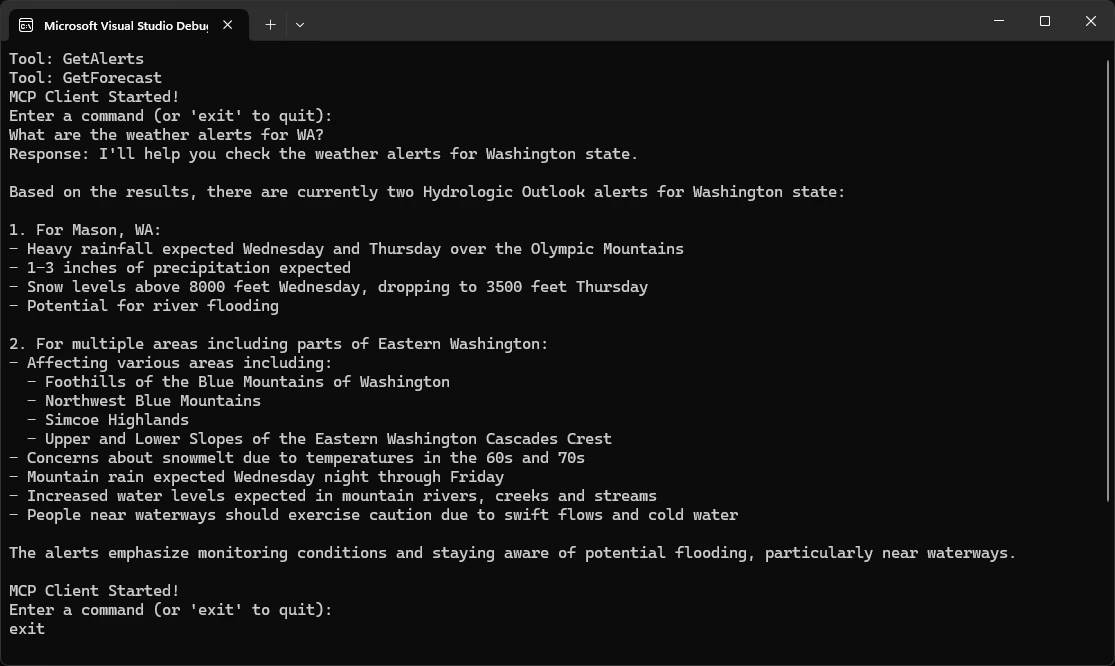
System Requirements
Before starting, ensure your system meets these requirements:- .NET 8.0 or higher
- Anthropic API key (Claude)
- Windows, Linux, or macOS
Setting up your environment
First, create a new .NET project:dotnet new console -n QuickstartClient
cd QuickstartClient
dotnet add package ModelContextProtocol --prerelease
dotnet add package Anthropic.SDK
dotnet add package Microsoft.Extensions.Hosting
dotnet add package Microsoft.Extensions.AI
Setting up your API key
You’ll need an Anthropic API key from the Anthropic Console.dotnet user-secrets init
dotnet user-secrets set "ANTHROPIC_API_KEY" "<your key here>"
Creating the Client
Basic Client Structure
First, let’s setup the basic client class in the fileProgram.cs:using Anthropic.SDK;
using Microsoft.Extensions.AI;
using Microsoft.Extensions.Configuration;
using Microsoft.Extensions.Hosting;
using ModelContextProtocol.Client;
var builder = Host.CreateApplicationBuilder(args);
builder.Configuration
.AddEnvironmentVariables()
.AddUserSecrets<Program>();
var (command, arguments) = GetCommandAndArguments(args);

var clientTransport = new StdioClientTransport(new()
{
    Name = "Demo Server",
    Command = command,
    Arguments = arguments,
});

await using var mcpClient = await McpClient.CreateAsync(clientTransport);

var tools = await mcpClient.ListToolsAsync();
foreach (var tool in tools)
{
    Console.WriteLine($"Connected to server with tools: {tool.Name}");
}
Program.cs file:static (string command, string[] arguments) GetCommandAndArguments(string[] args)
{
return args switch
{
[var script] when script.EndsWith(".py") => ("python", args),
[var script] when script.EndsWith(".js") => ("node", args),
[var script] when Directory.Exists(script) || (File.Exists(script) && script.EndsWith(".csproj")) => ("dotnet", ["run", "--project", script, "--no-build"]),
_ => throw new NotSupportedException("An unsupported server script was provided. Supported scripts are .py, .js, or .csproj")
};
}
Query processing logic
Now let’s add the core functionality for processing queries and handling tool calls:using var anthropicClient = new AnthropicClient(new APIAuthentication(builder.Configuration["ANTHROPIC_API_KEY"]))
.Messages
.AsBuilder()
.UseFunctionInvocation()
.Build();
var options = new ChatOptions
{
MaxOutputTokens = 1000,
ModelId = "claude-opus-5",
Tools = [.. tools]
};
Console.ForegroundColor = ConsoleColor.Green;
Console.WriteLine("MCP Client Started!");
Console.ResetColor();
PromptForInput();
while(Console.ReadLine() is string query && !"exit".Equals(query, StringComparison.OrdinalIgnoreCase))
{
if (string.IsNullOrWhiteSpace(query))
{
PromptForInput();
continue;
}
await foreach (var message in anthropicClient.GetStreamingResponseAsync(query, options))
{
Console.Write(message);
}
Console.WriteLine();
PromptForInput();
}
static void PromptForInput()
{
Console.WriteLine("Enter a command (or 'exit' to quit):");
Console.ForegroundColor = ConsoleColor.Cyan;
Console.Write("> ");
Console.ResetColor();
}
Key Components Explained
1. Client Initialization
- The client is initialized using
McpClient.CreateAsync(), which sets up the transport type and command to run the server.
2. Server Connection
- Supports Python, Node.js, and .NET servers.
- The server is started using the command specified in the arguments.
- Configures to use stdio for communication with the server.
- Initializes the session and available tools.
3. Query Processing
- Leverages Microsoft.Extensions.AI for the chat client.
- Configures the
IChatClientto use automatic tool (function) invocation. - The client reads user input and sends it to the server.
- The server processes the query and returns a response.
- The response is displayed to the user.
Running the Client
To run your client with any MCP server:dotnet run -- path/to/server.csproj # dotnet server
dotnet run -- path/to/server.py # python server
dotnet run -- path/to/server.js # node server
If you’re continuing the weather tutorial from the server quickstart, your command might look something like this:
dotnet run -- path/to/QuickstartWeatherServer.- Connect to the specified server
- List available tools
- Start an interactive chat session where you can:
- Enter queries
- See tool executions
- Get responses from Claude
- Exit the session when done
You can find the complete code for this tutorial here.Add You can find the complete The client will:
System Requirements
Before starting, ensure your system meets these requirements:- Mac or Windows computer
- Ruby 3.2.0 or higher installed (required by the Anthropic SDK)
- Anthropic API key (Claude)
Setting Up Your Environment
First, create a new Ruby project:# Create project directory
mkdir mcp-client
cd mcp-client
# Create a Gemfile
bundle init
# Add required dependencies
bundle add anthropic dotenv mcp
# Create our main file
touch client.rb
# Create project directory
mkdir mcp-client
cd mcp-client

# Create a Gemfile
bundle init

# Add required dependencies
bundle add anthropic dotenv mcp

# Create our main file
new-item client.rb
Setting Up Your API Key
You’ll need an Anthropic API key from the Anthropic Console.Create a.env file to store it:echo "ANTHROPIC_API_KEY=your-api-key-goes-here" > .env
.env to your .gitignore:echo ".env" >> .gitignore
Make sure you keep your
ANTHROPIC_API_KEY secure!Creating the Client
Basic Client Structure
First, let’s set up our requires and create the basic client class:require "anthropic"
require "dotenv/load"
require "json"
require "mcp"
class MCPClient
ANTHROPIC_MODEL = "claude-opus-5"
def initialize
@mcp_client = nil
@transport = nil
@anthropic_client = nil
end
# methods will go here
end
Server Connection Management
Next, we’ll implement the method to connect to an MCP server:def connect_to_server(server_script_path)
command = case File.extname(server_script_path)
when ".rb"
"ruby"
when ".py"
"python3"
when ".js"
"node"
else
raise ArgumentError, "Server script must be a .rb, .py, or .js file."
end
@transport = MCP::Client::Stdio.new(command: command, args: [server_script_path])
@mcp_client = MCP::Client.new(transport: @transport)
@mcp_client.connect
tool_names = @mcp_client.tools.map(&:name)
puts "\nConnected to server with tools: #{tool_names}"
end
Query Processing Logic
Now let’s add the core functionality for processing queries and handling tool calls:private
def process_query(query)
messages = [{ role: "user", content: query }]
available_tools = @mcp_client.tools.map do |tool|
{ name: tool.name, description: tool.description, input_schema: tool.input_schema }
end
# Initial Claude API call.
response = chat(messages, tools: available_tools)
# Process response and handle tool calls.
if response.content.any?(Anthropic::Models::ToolUseBlock)
assistant_content = response.content.filter_map do |content_block|
case content_block
when Anthropic::Models::TextBlock
{ type: "text", text: content_block.text }
when Anthropic::Models::ToolUseBlock
{ type: "tool_use", id: content_block.id, name: content_block.name, input: content_block.input }
end
end
messages << { role: "assistant", content: assistant_content }
end
response_parts = []
tool_results = []
response.content.each do |content|
case content
when Anthropic::Models::TextBlock
response_parts << content.text
when Anthropic::Models::ToolUseBlock
# Execute tool call via MCP.
result = @mcp_client.call_tool(name: content.name, arguments: content.input)
response_parts << "[Calling tool #{content.name} with args #{content.input.to_json}]"
tool_result_content = result.dig("result", "content")
result_text = if tool_result_content.is_a?(Array)
tool_result_content.filter_map { |content_item| content_item["text"] }.join("\n")
else
tool_result_content.to_s
end
tool_results << { type: "tool_result", tool_use_id: content.id, content: result_text }
end
end
unless tool_results.empty?
# Every tool_use block needs a matching tool_result in a single user message.
messages << { role: "user", content: tool_results }
# Get next response from Claude.
response = chat(messages)
response.content.each do |content_block|
response_parts << content_block.text if content_block.is_a?(Anthropic::Models::TextBlock)
end
end
response_parts.join("\n")
end
def chat(messages, tools: nil)
params = { model: ANTHROPIC_MODEL, max_tokens: 1000, messages: messages }
params[:tools] = tools if tools
anthropic_client.messages.create(**params)
end
def anthropic_client
@anthropic_client ||= Anthropic::Client.new(api_key: ENV["ANTHROPIC_API_KEY"])
end
Interactive Chat Interface
Now we’ll add the chat loop and cleanup functionality:def chat_loop
puts <<~MESSAGE
MCP Client Started!
Type your queries or 'quit' to exit.
MESSAGE
loop do
print "\nQuery: "
line = $stdin.gets
break if line.nil?
query = line.chomp.strip
break if query.downcase == "quit"
next if query.empty?
begin
response = process_query(query)
puts "\n#{response}"
rescue => e
puts "\nError: #{e.message}"
end
end
end
def cleanup
@transport&.close
end
Main Entry Point
Finally, we’ll add the main execution logic:if ARGV.empty?
puts "Usage: ruby client.rb <path_to_server_script>"
exit 1
end
client = MCPClient.new
begin
client.connect_to_server(ARGV[0])
api_key = ENV["ANTHROPIC_API_KEY"]
if api_key.nil? || api_key.empty?
puts <<~MESSAGE
No ANTHROPIC_API_KEY found. To query these tools with Claude, set your API key:
export ANTHROPIC_API_KEY=your-api-key-here
MESSAGE
exit
end
client.chat_loop
rescue => e
puts "Error: #{e.message}"
exit 1
ensure
client.cleanup
end
client.rb file here.Key Components Explained
1. Client Initialization
- The
MCPClientclass initializes with nil references for lazy setup - The Anthropic client is lazily initialized via the
anthropic_clientmethod - Uses
dotenvto load environment variables from.env
2. Server Connection
- Supports Ruby, Python, and Node.js servers
- Uses
File.extnameto determine the server script type - Uses
MCP::Client::Stdiofor stdio transport - Initializes the MCP client and lists available tools
3. Query Processing
- Maps MCP tools to Anthropic tool format (
name,description,input_schema) - Uses
Anthropic::Models::TextBlockandAnthropic::Models::ToolUseBlockfor pattern matching - Builds assistant content once before iterating tool calls
- Executes tool calls via
@mcp_client.call_tool - Uses
chathelper method to wrap Anthropic API calls - Extracts tool result content with
result.dig("result", "content") - Passes tool results back to Claude for a final response
4. Interactive Interface
- Provides a simple command-line interface
- Handles user input and displays responses
- Skips empty queries
- Includes basic error handling
5. Resource Management
- Proper cleanup of the transport via
begin…ensure - Top-level
rescuefor error handling - API key validation after server connection
Running the Client
To run your client with any MCP server:bundle exec ruby client.rb path/to/server.rb # ruby server
bundle exec ruby client.rb path/to/server.py # python server
bundle exec ruby client.rb path/to/build/index.js # node server
If you’re continuing the weather tutorial from the server quickstart, your command might look something like this:
bundle exec ruby client.rb /path/to/weather-server-ruby/weather.rb- Connect to the specified server
- List available tools
- Start an interactive chat session where you can:
- Enter queries
- See tool executions
- Get responses from Claude
How It Works
When you submit a query:- The client gets the list of available tools from the server
- Your query is sent to Claude along with tool descriptions
- Claude decides which tools (if any) to use
- The client executes any requested tool calls through the server
- Results are sent back to Claude
- Claude provides a natural language response
- The response is displayed to you
Best practices
-
Error Handling
- Wrap tool calls in
begin…rescueblocks - Provide meaningful error messages
- Gracefully handle connection issues
- Wrap tool calls in
-
Resource Management
- Always close the transport when done
- Use
begin…ensurefor proper cleanup - Handle server disconnections
-
Security
- Store API keys securely in
.env - Validate server responses
- Be cautious with tool permissions
- Store API keys securely in
-
Tool Names
- Tool names can be validated according to the format specified here
- If a tool name conforms to the specified format, it should not fail validation by an MCP client
Troubleshooting
Server Path Issues
- Double-check the path to your server script is correct
- Use the absolute path if the relative path isn’t working
- For Windows users, make sure to use forward slashes (/) or escaped backslashes (\) in the path
- Verify the server file has the correct extension (.py for Python, .js for Node.js, or .rb for Ruby)
# Relative path
bundle exec ruby client.rb ./server/weather.rb

# Absolute path
bundle exec ruby client.rb /Users/username/projects/mcp-server/weather.rb

# Windows path (either format works)
bundle exec ruby client.rb C:/projects/mcp-server/weather.rb
bundle exec ruby client.rb C:\\projects\\mcp-server\\weather.rb
Response Timing
- The first response might take up to 30 seconds to return
- This is normal and happens while:
- The server initializes
- Claude processes the query
- Tools are being executed
- Subsequent responses are typically faster
- Don’t interrupt the process during this initial waiting period
Common Error Messages
If you see:Errno::ENOENT: Check your server path and ensure the command (ruby,python3,node) is availableConnection refused: Ensure the server is running and the path is correctTool execution failed: Verify the tool’s required environment variables are setAnthropic::Errors::AuthenticationError: Check your.envfile has a validANTHROPIC_API_KEY
You can find the complete code for this tutorial here.Replace the contents of The Add The client loads A tool may declare an This method:The method sends the user’s query to Claude with the server’s tools and then loops. Each pass collects the text blocks of the reply and gathers its The loop accepts queries until the user types The entry point loads MCP and the Messages API describe tools with the same information in different Rust types. Running bare The client will:Without an If a command cannot be found, use its absolute path or verify it is available in your
System Requirements
Before starting, ensure your system meets these requirements:- Rust and Cargo 1.88 or newer
- Anthropic API key (Claude)
- A Python, Node.js, or executable MCP server to connect to
Setting Up Your Environment
First, create a new Rust project:cargo new mcp-client-rust
cd mcp-client-rust
Cargo.toml with the following:Cargo.toml
[package]
name = "mcp-client-rust"
version = "0.1.0"
edition = "2024"

[dependencies]
anyhow = "1.0.104"
jsonschema = "0.59"
# Only the client half of rmcp is needed, over a child-process stdio transport.
rmcp = { version = "3.4", features = [
    "client",
    "transport-io",
    "transport-child-process",
], default-features = false }
# The Messages API is called directly, which keeps the provider's content
# blocks verbatim. That matters for signed thinking blocks; see request_model.
reqwest = { version = "0.13", features = ["json"] }
serde = { version = "1.0", features = ["derive"] }
serde_json = "1.0.151"
tokio = { version = "1.53", features = ["full"] }
dotenvy = "0.15.7"
rmcp crate provides the Rust MCP SDK and the child-process stdio transport. Only its client half is enabled. The client calls the Messages API directly with reqwest. Calling the API directly keeps the content blocks of each reply verbatim, which matters when a reply contains a signed thinking block. The jsonschema crate validates structured tool results against the schema a tool declares.Setting Up Your API Key
You’ll need an Anthropic API key from the Anthropic Console.Create a.env file to store it:echo "ANTHROPIC_API_KEY=your-api-key-goes-here" > .env
.env to your .gitignore:echo ".env" >> .gitignore
.env when the file exists. Exporting ANTHROPIC_API_KEY in the shell works as well.Make sure you keep your
ANTHROPIC_API_KEY secure!Creating the Client
Opensrc/main.rs and replace its contents as you work through the following sections.Imports and Client Structure
First, add the imports and constants:use anyhow::{Context, Result, bail};
use jsonschema::Validator;
use rmcp::model::{
CallToolRequestParams, CallToolResult, ClientCapabilities, ClientConfig, Implementation,
ProtocolVersion, Tool as McpTool,
};
use rmcp::service::{ClientLifecycleMode, ClientServiceExt, RoleClient, RunningService};
use rmcp::transport::TokioChildProcess;
use serde::{Deserialize, Serialize};
use serde_json::{Value, json};
use std::collections::HashMap;
use std::time::Duration;
use tokio::io::{self, AsyncBufReadExt, BufReader};
use tokio::process::Command;
const MODEL_ANTHROPIC: &str = "claude-opus-5";
/// The model may think before answering, and max_tokens caps thinking
/// plus the reply, so leave room for both.
const MAX_TOKENS: u32 = 10000;
const MAX_TOOL_TURNS: usize = 10;
const ANTHROPIC_API_BASE: &str = "https://api.anthropic.com";
const ANTHROPIC_VERSION: &str = "2023-06-01";
const REQUEST_TIMEOUT: Duration = Duration::from_secs(120);
MAX_TOKENS caps the thinking and the reply together. MAX_TOOL_TURNS bounds how many rounds of tool calls one query may take. REQUEST_TIMEOUT applies to each request sent to the Messages API.Next, add the types for the Messages API and the client structure:/// One turn of the conversation, as the Messages API takes it.
///
/// `content` is a list of raw blocks rather than typed ones on purpose. An
/// assistant turn is fed straight back on the next request, and Claude requires
/// the blocks it sent to return unchanged -- a thinking block's `signature`
/// included. Reserialising through a narrower type would drop whatever it does
/// not model.
#[derive(Serialize, Clone)]
struct Message {
role: &'static str,
content: Vec<Value>,
}
impl Message {
fn user(content: Vec<Value>) -> Self {
Message {
role: "user",
content,
}
}
fn assistant(content: Vec<Value>) -> Self {
Message {
role: "assistant",
content,
}
}
}
/// A tool as the Messages API declares it, converted from an MCP tool.
#[derive(Serialize, Clone)]
struct ToolDefinition {
name: String,
#[serde(skip_serializing_if = "Option::is_none")]
description: Option<String>,
input_schema: Value,
}
#[derive(Serialize)]
struct MessagesRequest<'a> {
model: &'a str,
max_tokens: u32,
messages: &'a [Message],
tools: &'a [ToolDefinition],
}
#[derive(Deserialize)]
struct MessagesResponse {
content: Vec<Value>,
}
/// The `type` of a content block, when it has one.
fn block_type(block: &Value) -> &str {
block
.get("type")
.and_then(Value::as_str)
.unwrap_or_default()
}
struct MCPClient {
http: reqwest::Client,
session: Option<RunningService<RoleClient, ClientConfig>>,
tools: Vec<ToolDefinition>,
/// Compiled `outputSchema` per tool name. rmcp does not validate results,
/// so this client does it with the `jsonschema` crate.
output_schemas: HashMap<String, Validator>,
}
Message holds the content blocks of one turn as raw serde_json::Values. An assistant turn goes back to the API unchanged on the next request, with any thinking block and its signature intact. ToolDefinition is a tool as the Messages API declares it. MCPClient keeps the HTTP client, the active MCP session, the tools in Messages API form, and one compiled validator per tool that declares an outputSchema.Client Initialization
Next, open theimpl MCPClient block with the constructor. The methods in the following sections go inside this block, which closes after cleanup:impl MCPClient {
fn new() -> Result<Self> {
Ok(MCPClient {
http: reqwest::Client::builder()
.timeout(REQUEST_TIMEOUT)
.build()
.context("Failed to build HTTP client")?,
session: None,
tools: Vec::new(),
output_schemas: HashMap::new(),
})
}
new builds a reqwest::Client with the request timeout. The API key is read later, when a request is sent, so connecting to a server and listing its tools works without one.Validating Structured Tool Output
Add this method inside theimpl MCPClient block: /// Check a result against its tool's declared `outputSchema`. Error results
/// are exempt: they carry a message, not data.
fn validate_tool_output(&self, name: &str, result: &CallToolResult) -> Result<()> {
let Some(validator) = self.output_schemas.get(name) else {
return Ok(());
};
if result.is_error.unwrap_or(false) {
return Ok(());
}
let Some(structured) = &result.structured_content else {
bail!("Tool {name} declares an output schema but returned no structured content");
};
if let Err(error) = validator.validate(structured) {
bail!("Structured content from tool {name} does not match its output schema: {error}");
}
Ok(())
}
outputSchema, and the specification asks clients to validate structuredContent against it. rmcp does not do this, so the client keeps a compiled jsonschema::Validator per tool and checks each successful result. A result with is_error set carries a message, so it is exempt. A tool that declares a schema and returns no structured content is reported as an error.Server Connection Management
Add this method inside theimpl MCPClient block: async fn connect_to_server(&mut self, server_args: &[String]) -> Result<()> {
if self.session.is_some() {
bail!("Client is already connected to a server");
}
let mut command = Command::new(&server_args[0]);
command.args(&server_args[1..]);
let process = TokioChildProcess::new(command)
.with_context(|| format!("Failed to spawn server process for {:?}", server_args))?;
// Without a ClientConfig the client would report rmcp's own crate name
// and version rather than its own.
let config = ClientConfig::new(
ClientCapabilities::default(),
Implementation::new("mcp-client-rust", "1.0.0"),
);
// `Auto` probes server/discover and falls back to the 2025-11-25
// initialize handshake, matching the Python and TypeScript clients.
// `serve` alone would only ever do the legacy handshake, under which a
// server cannot offer this era's features -- an array-rooted
// `outputSchema`, for one, which get_alerts uses.
let session = config
.serve_with_lifecycle(
process,
ClientLifecycleMode::Auto {
preferred_versions: vec![ProtocolVersion::V_2026_07_28],
legacy_version: Some(ProtocolVersion::V_2025_11_25),
},
)
.await?;
let rmcp_tools = session
.list_all_tools()
.await
.context("Unable to list tools from server")?;
let tool_names: Vec<String> = rmcp_tools
.iter()
.map(|tool| tool.name.to_string())
.collect();
let protocol_version = session
.peer_info()
.map(|info| info.protocol_version.to_string())
.unwrap_or_else(|| "unknown".to_string());
println!("Connected over protocol {protocol_version} with tools: {tool_names:?}");
// An outputSchema root may be any JSON Schema, not just an object.
for tool in &rmcp_tools {
let Some(schema) = &tool.output_schema else {
continue;
};
let schema = Value::Object(schema.as_ref().clone());
let validator = Validator::new(&schema).with_context(|| {
format!("Failed to compile output schema of tool {}", tool.name)
})?;
self.output_schemas.insert(tool.name.to_string(), validator);
}
self.tools = convert_tools(&rmcp_tools);
self.session = Some(session);
Ok(())
}
- Starts the server as a child process using the command and arguments supplied on the command line
- Names the client
mcp-client-rustthrough aClientConfig - Negotiates the protocol with
serve_with_lifecycleandClientLifecycleMode::Auto, which probesserver/discoverfor2026-07-28and falls back to the2025-11-25initializehandshake - Lists all tools advertised by the server and prints the negotiated protocol version with the tool names
- Compiles a validator from each tool’s
outputSchema - Converts the tools into the form used in model requests
serve method alone performs only the legacy handshake. The Auto mode makes the features of the current revision reachable, including an outputSchema whose root is an array.Query Processing Logic
Now add the core query-processing method insideimpl MCPClient: async fn process_query(&mut self, query: &str) -> Result<String> {
let session = self
.session
.as_ref()
.context("Client is not connected to any server")?;
let mut messages = vec![Message::user(vec![json!({"type": "text", "text": query})])];
let mut final_text = Vec::new();
// Initial Claude API call with tools
let mut content = self.request_model(&messages).await?;
// Keep calling tools until Claude answers without one, up to a cap.
for _ in 0..MAX_TOOL_TURNS {
let mut tool_uses = Vec::new();
for block in &content {
match block_type(block) {
"text" => {
if let Some(text) = block.get("text").and_then(Value::as_str) {
final_text.push(text.to_string());
}
}
"tool_use" => tool_uses.push(block.clone()),
_ => {}
}
}
if tool_uses.is_empty() {
return Ok(final_text.join("\n"));
}
// Execute every tool call in this response and collect the results
let mut tool_results = Vec::new();
for tool_use in &tool_uses {
let name = tool_use
.get("name")
.and_then(Value::as_str)
.context("tool_use block has no name")?;
let id = tool_use
.get("id")
.and_then(Value::as_str)
.context("tool_use block has no id")?;
let input = tool_use.get("input").cloned().unwrap_or(json!({}));
// Add information about the tool call to final text
final_text.push(format!("[Calling tool {name} with args {input}]"));
// Query the MCP server
let mut params = CallToolRequestParams::new(name.to_string());
if let Some(arguments) = input.as_object().cloned() {
params = params.with_arguments(arguments);
}
let tool_result = match session.call_tool(params).await {
Ok(result) => result,
// A rejected call is the model's mistake to correct, so it
// goes back as a failed tool_result rather than ending the
// query. Every tool_use still needs a matching result.
Err(error) => {
final_text.push(format!("[{name} failed: {error}]"));
tool_results.push(json!({
"type": "tool_result",
"tool_use_id": id,
"content": format!("Tool call {name} failed: {error}"),
"is_error": true,
}));
continue;
}
};
self.validate_tool_output(name, &tool_result)?;
// structured_content is data the application can use directly.
if let Some(Value::Array(items)) = &tool_result.structured_content {
final_text.push(format!("[{name} returned {} items]", items.len()));
}
// content is a list of block types; forward only the text ones.
let mut payload = tool_result
.content
.iter()
.filter_map(|block| block.as_text().map(|text| text.text.as_str()))
.collect::<Vec<_>>()
.join("\n");
// A structured result SHOULD also carry serialized JSON in a text
// block, but only SHOULD, so fall back to serializing it rather
// than sending the model an empty result.
if payload.is_empty() {
if let Some(structured) = &tool_result.structured_content {
payload = structured.to_string();
}
}
tool_results.push(json!({
"type": "tool_result",
"tool_use_id": id,
"content": payload,
"is_error": tool_result.is_error.unwrap_or(false),
}));
}
// Append the assistant's response and all tool results, in one user
// message, to the history. Every tool_use needs a matching
// tool_result, and the assistant's blocks go back as they arrived.
messages.push(Message::assistant(content));
messages.push(Message::user(tool_results));
content = self.request_model(&messages).await?;
}
// The turn cap was hit. Keep the last response's text. If it asked for
// more tools, say they were not run.
let mut wants_tools = false;
for block in &content {
match block_type(block) {
"text" => {
if let Some(text) = block.get("text").and_then(Value::as_str) {
final_text.push(text.to_string());
}
}
"tool_use" => wants_tools = true,
_ => {}
}
}
if wants_tools {
final_text.push(format!("[Stopped after {MAX_TOOL_TURNS} tool-use turns]"));
}
Ok(final_text.join("\n"))
}
tool_use blocks. When a reply contains no tool use, the collected text is returned. Otherwise the client calls each requested tool through the MCP session and builds one tool_result block per tool_use. A call the server rejects goes back with is_error set, so Claude can read the message and try something else. A successful result is checked against its output schema. Its text blocks are joined and forwarded to Claude, and when it has no text blocks the serialized structured_content is sent in their place. When structured_content is an array, the client prints the item count as an example of using structured data directly. The assistant’s blocks are appended to the history exactly as they arrived, followed by one user message holding all tool results, and the next request is sent. The loop stops after MAX_TOOL_TURNS rounds. At that point the last reply’s text is kept, and a note is added when Claude asked for more tools.Sending Model Requests
Add this helper method insideimpl MCPClient: /// Call Claude with the current history and return the content blocks of
/// its reply, untouched. Tools are passed on every call so Claude can keep
/// calling them across turns.
async fn request_model(&self, messages: &[Message]) -> Result<Vec<Value>> {
let api_key = std::env::var("ANTHROPIC_API_KEY").context("ANTHROPIC_API_KEY is not set")?;
// The base URL is configurable so the client can point at a local stand-in.
let base_url =
std::env::var("ANTHROPIC_BASE_URL").unwrap_or_else(|_| ANTHROPIC_API_BASE.to_string());
let request = MessagesRequest {
model: MODEL_ANTHROPIC,
max_tokens: MAX_TOKENS,
messages,
tools: &self.tools,
};
let response = self
.http
.post(format!("{}/v1/messages", base_url.trim_end_matches('/')))
.header("x-api-key", api_key)
.header("anthropic-version", ANTHROPIC_VERSION)
.json(&request)
.send()
.await
.context("Anthropic request failed")?;
let status = response.status();
let body = response
.text()
.await
.context("Unable to read the Anthropic response")?;
if !status.is_success() {
bail!("Anthropic request failed with {status}: {body}");
}
let parsed: MessagesResponse =
serde_json::from_str(&body).context("Unable to parse the Anthropic response")?;
Ok(parsed.content)
}
request_model reads ANTHROPIC_API_KEY on each call and posts the history to /v1/messages with the x-api-key and anthropic-version headers. ANTHROPIC_BASE_URL overrides the endpoint, which allows pointing the client at a local stand-in. Tools are sent on every request so Claude can keep calling them across turns. A non-success status becomes an error that includes the response body. The reply’s content blocks are returned untouched.Interactive Chat Interface
Add the interactive terminal loop insideimpl MCPClient: async fn chat_loop(&mut self) -> Result<()> {
println!("\nMCP Client Started!");
println!("Type your queries or 'quit' to exit.");
let mut stdin = BufReader::new(io::stdin());
let mut input = String::new();
loop {
print!("\nQuery: ");
std::io::Write::flush(&mut std::io::stdout())?;
input.clear();
if stdin.read_line(&mut input).await? == 0 {
break; // EOF
}
let query = input.trim();
if query.eq_ignore_ascii_case("quit") {
break;
}
if query.is_empty() {
continue;
}
match self.process_query(query).await {
Ok(response) => println!("\n{}", response),
Err(err) => println!("\nError: {:#}", err),
}
}
Ok(())
}
quit or closes standard input. Query errors are printed without terminating the client. The {:#} format prints the whole anyhow context chain on one line.Cleanup
Add this method insideimpl MCPClient to stop the MCP session and child process. The closing brace ends the impl MCPClient block: async fn cleanup(&mut self) -> Result<()> {
if let Some(session) = self.session.take() {
let _ = session.cancel().await;
}
Ok(())
}
}
Main Entry Point
Next, add the asynchronous entry point outside theimpl MCPClient block:#[tokio::main]
async fn main() -> Result<()> {
// .env is optional; the key may come from the environment instead.
let _ = dotenvy::dotenv();
let mut args = std::env::args();
let _ = args.next();
let server_args: Vec<String> = args.collect();
if server_args.is_empty() {
eprintln!("Usage: cargo run -- <server_script_or_binary> [args...]");
std::process::exit(1);
}
let mut client = MCPClient::new()?;
let result = async {
client.connect_to_server(&server_args).await?;
// Connecting and listing tools needs no credentials; querying them
// does. Matching the Python and TypeScript clients, report and exit
// rather than failing, so the connection itself can be exercised
// without a key.
// Empty counts as unset, as it does in the other clients: `KEY= cmd`
// is how the smoke test forces this path.
if std::env::var("ANTHROPIC_API_KEY").map_or(true, |key| key.is_empty()) {
println!(
"\nNo ANTHROPIC_API_KEY found. To query these tools with Claude, set your API key:"
);
println!(" export ANTHROPIC_API_KEY=your-api-key-here");
return Ok(());
}
client.chat_loop().await
}
.await;
let cleanup_result = client.cleanup().await;
result?;
cleanup_result?;
Ok(())
}
.env when the file exists, treats all remaining command-line arguments as the server command, connects the client, and ensures cleanup runs before exiting. When ANTHROPIC_API_KEY is unset or empty, the client prints how to set the key and exits after listing the server’s tools. This exercises the MCP connection without credentials.Describing Tools to the Model
Finally, add this function outside theimpl MCPClient block:fn convert_tools(tools: &[McpTool]) -> Vec<ToolDefinition> {
tools
.iter()
.map(|tool| ToolDefinition {
name: tool.name.to_string(),
description: tool.description.as_deref().map(str::to_string),
input_schema: Value::Object(tool.input_schema.as_ref().clone()),
})
.collect()
}
convert_tools copies each MCP tool’s name, description, and input schema into a ToolDefinition, which serializes to the shape the tools parameter expects. The description is omitted when a tool has none.Verify the Complete File
Before running the client, confirm the items insrc/main.rs are placed at the correct scope:new,validate_tool_output,connect_to_server,process_query,request_model,chat_loop, andcleanupare methods inside the singleimpl MCPClientblock, which opens in Client Initialization and closes aftercleanup.userandassistantare methods inside theimpl Messageblock.block_type,main, andconvert_toolsare functions outside bothimplblocks.
src/main.rs example, then check that it compiles:cargo fmt --check
cargo check
Running the Client
Usecargo run -- followed by the command you would normally use to start the MCP server:# Python server
cargo run -- python path/to/server.py
# Node.js server
cargo run -- node path/to/build/index.js
# Executable server
cargo run -- path/to/server-binary
cargo run without a server command prints the usage message and exits.If you’re continuing the weather tutorial from the server quickstart, build the server first and then run a command similar to:
cargo run -- ../weather-server-rust/target/debug/weather- Start and connect to the specified MCP server
- Print the negotiated protocol version and the tools available from that server
- Start an interactive chat session where you can:
- Enter queries
- See tool executions
- Get responses from Claude
Connected over protocol 2026-07-28 with tools: ["get_alerts", "get_forecast"]
ANTHROPIC_API_KEY, the client stops after this line and prints how to set the key.How It Works
When the user submits a query:- The client sends the query and the server’s tool definitions to Claude
- Claude decides which tools, if any, to use
- The client executes every requested tool through the MCP session and validates structured results against their output schemas
- Tool results, including failures marked with
is_error, are sent back to Claude together with Claude’s own blocks, unchanged - Steps 2 through 4 repeat until Claude answers without a tool call or
MAX_TOOL_TURNSis reached - The collected text is displayed in the terminal
Best Practices
-
Error Handling
- Add context to errors at process, MCP, and model API boundaries
- Send a rejected tool call back to Claude as a
tool_resultwithis_errorset, so everytool_usegets an answer - Report individual query errors without terminating the interactive session
-
Conversation History
- Feed assistant blocks back exactly as they arrived, thinking blocks and their signatures included
- Pass the tool list on every request so Claude can keep calling tools across turns
- Cap the number of tool turns per query
-
Resource Management
- Always cancel the MCP session during cleanup
- Ensure cleanup runs even when connection or chat-loop operations fail
- Avoid starting a second server while a session is active
-
Security
- Store API keys securely in
.envor the environment - Validate structured tool results against their declared output schemas
- Connect only to trusted servers and executable commands
- Store API keys securely in
Troubleshooting
Server Command Issues
The arguments aftercargo run -- must form a complete command. Interpreted server scripts need their runtime:# Correct
cargo run -- python ./server/weather.py
cargo run -- node ./server/build/index.js
# Incorrect: a Python script is not necessarily executable by itself
cargo run -- ./server/weather.py
PATH.Environment File Issues
The.env file is optional. When it is missing, the client reads ANTHROPIC_API_KEY from the environment. When the key is unset or empty, the client connects, prints the server’s tools, and exits with instructions for setting the key. Export the key, or create a .env in the directory where the client runs that contains:ANTHROPIC_API_KEY=your-api-key-goes-here
Tool and Response Errors
Unable to list tools from server: Verify the server starts successfully and communicates over stdio[... failed: ...]in the output: The server rejected the tool call. The message also goes to Claude as a failedtool_result, so Claude may retry with different argumentsTool ... declares an output schema but returned no structured contentorStructured content from tool ... does not match its output schema: The server’s result does not satisfy its ownoutputSchemaAnthropic request failed with ...: The response body follows the status and names the cause, such as an invalid key or insufficient credits[Stopped after 10 tool-use turns]: The query reachedMAX_TOOL_TURNS. Raise the constant for workflows that need more rounds
Next steps
Example servers
Check out our gallery of official MCP servers and implementations